
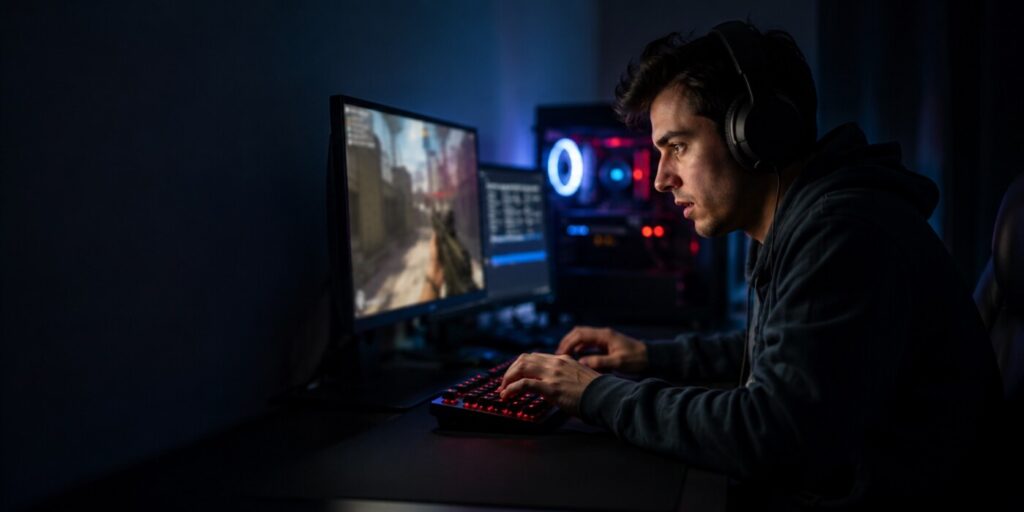
Your frame rate tanks mid-match. The screen freezes for half a second, then catches up right as you get shot. Nine times out of ten, this isn’t your hardware failing you. It’s your drivers falling behind, and most people never think to check.
Check What Your PC Can Actually Handle
Before changing a single setting, it helps to know what your PC can realistically do. Run a quick FPS test with your CPU, GPU, RAM, and target game plugged in. You’ll get an estimated frame range in seconds, no install required. It won’t match a real benchmark exactly, nothing free does, but it tells you whether 240Hz is realistic for your rig or whether you’re chasing a number your hardware was never going to hit.
Read the Result Honestly
If the estimate is already low, that’s a hardware ceiling, and no software fix changes it. But if the number looks solid, 100-plus, and your actual gameplay still stutters, that mismatch is the real signal. Your hardware isn’t the bottleneck. Something else is.
Why Outdated Drivers Are Usually the Real Problem
A driver is the small piece of software that lets Windows talk to your graphics card, network adapter, or sound chip. When a new game ships, GPU makers release “game ready” driver versions tuned for it. Skip those and you’re running your $500 graphics card on year-old instructions. That gap alone causes stutter, texture pop-in, and random crashes that have nothing to do with your specs.
The Manual Route Gets Old Fast
Manually hunting down the right version is tedious. You’d need to know your exact GPU model, dig through a manufacturer site, and hope you grab the correct build for your Windows version. Get it wrong and you risk something incompatible with your setup, which causes more crashes than it fixes. Repeat that process for your network card, chipset, and audio drivers, and a five-minute task turns into an afternoon.
The fix sounds simple: just update drivers on a regular basis. In practice, most people either forget, don’t know how, or grab the wrong file from an unofficial site, so it quietly falls out of date until something breaks. A dedicated tool closes that gap fast. Driver Booster scans your system, flags every outdated or missing piece of hardware software, and pulls verified versions from a database covering over 1,200 brands, Intel, AMD, Nvidia, and others included. One scan, one click, done.
What Else This Fixes, and What It Won’t
Beyond graphics, the same maintenance habit clears up problems you might not connect to drivers at all: no sound after a Windows update, Wi-Fi that drops for no reason, a printer that suddenly goes offline, USB devices Windows stops recognizing. All of these trace back to the same root cause more often than people expect.
The Honest Limits
Software like this won’t turn a six-year-old laptop into a gaming rig. It can’t fix a genuine hardware bottleneck, if your GPU is simply too weak for a game at max settings, no update changes that math. What it does well is close the gap between what your hardware is capable of and what it’s actually delivering right now, which is usually bigger than people expect.
Worth doing every few months, not just when something breaks. New game releases and Windows updates both shift compatibility requirements, so a setup that ran fine last month can quietly fall behind.
Quick FAQ
How often should I check for driver updates?
Every 4 to 6 weeks is reasonable, or right after installing a major Windows update.
Will refreshing drivers actually boost my FPS?
It can, especially if you’re behind on GPU driver versions. It won’t exceed what your hardware is physically capable of.
Is a frame rate estimate the same as a real benchmark?
No. It’s a useful starting point for planning, not a lab-accurate measurement of your exact machine.
Start with the numbers, fix what’s actually holding you back, then get back to playing.