
Your Recap Video Never Looks as Good as the Session Felt
Ever finish editing an RPG session recap, hit play, and think… “why doesn’t this feel as good as the game did?”
A great boss fight or hilarious roleplay moment can lose its impact when the video keeps jumping between blurry webcams, soft VTT captures, and mismatched clips.
The real culprit, most of the time, isn’t a single terrible clip…
The problem is an attempt to force footage recorded from multiple varied sources together and pretend it’s a single clip. In this tutorial, we’re going to walk you through ways to sort out some of that mixed footage and pull off a much more unified-looking recap session.

Where the Mismatch Actually Comes From
The Webcam Grid Problem
Have you ever realized how in your screen capture one participant appears sharp, while the next seems to be a 2012-era phone call?
Well, most people do not have the same webcam, similar light situation, and video positioning, so it is impossible that Zoom and Discord create perfectly homogeneous grids; when clips are together, these quality differences are evident!
The Screen-Capture Blur Nobody Notices Until Playback
Ugh, this is such an annoying one. So, your VTT map was nice and clear for while you were in session? But it’s come out fuzzy in your edit?
Well, it’s likely a recording resolution mismatch.
If your recording setup and editing output resolution do not match, the video image may already be distorted before you’ve edited it.
Downloaded or Borrowed Clips Bring Their Own Baggage
“When a co-DM or player gives you a clip, and all of a sudden, the video has a huge Discord overlay or watermark burned right onto it… what now?
You could try to crop it and lose half of your combat map, or you can just deal with the intrusive graphic that doesn’t belong on your combat map. It’s a common headache for actual-play creators.
Bringing Mismatched Sources to a Consistent Baseline
Where to begin?
It’s not with fancy effects or fancy editing. First, give each clip something in common. Investing just five or ten minutes, deciding on each one of the clip’s “most challenging issue” can make a huge time saving later down the road.
Step 1 — Diagnose Each Source Before Editing
But before you even look at your timeline, ask yourself, “What is wrong with this video in the first place?”
Because if you’ve got a dark webcam feed, the problem is definitely going to be different to your smudged-out battle map, and certainly from a watermarked clip package.
A quick check now can save you a lot of editing later.
| Source | Common Problem | What It Needs |
| Player webcam feeds | Different lighting, camera quality, and sharpness | Match the brightness and clarity across each player |
| VTT or screen capture | Soft maps and blurry text from resolution mismatch | Sharpen and upscale where needed |
| Downloaded or borrowed clips | Discord overlays, bot logos, or app watermarks | Remove the overlay before making other edits |
Essentially it means all your clips are on the same starting line. So, once we have all our clips sort of level, that then makes your recap feel more natural.
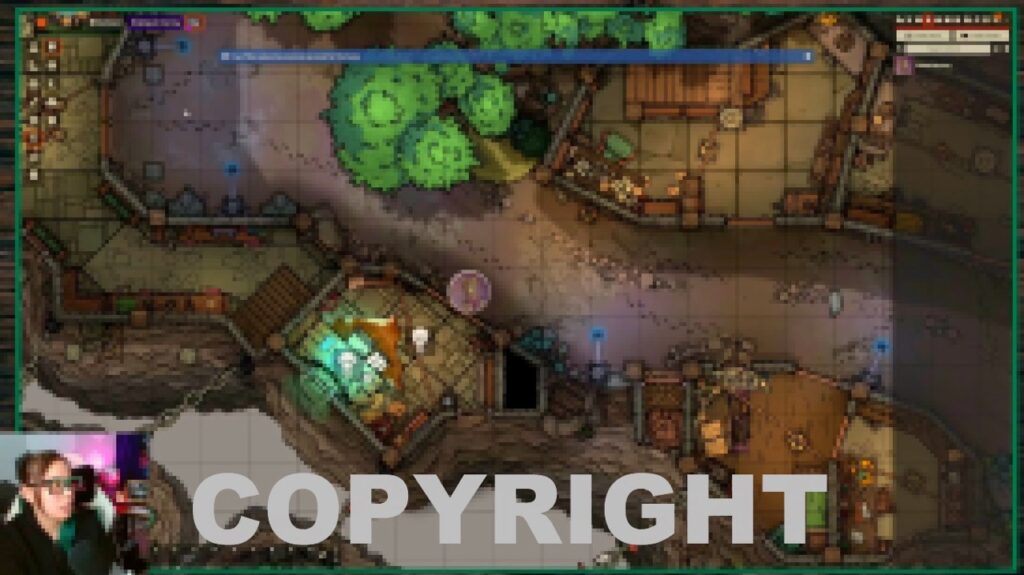
Below is a watermarked blurry VTT gameplay video which we’re going to test.
Step 2 — Clear Any Overlay from Borrowed or Downloaded Clips First
Got a great highlight clip from your co-DM or guest?
Awesome. But does the raw footage have a Discord logo, usernames, or timestamps hovering on top of the action?
Or the dreaded watermark of that video capture app you were trying out?
Get those cleaned up, first, then worry about the sharpening or the cool video enhancements.
But why is this so? Because with improved quality, unintended errors can even become highlighted as well!
For example, enhancing a fuzzy logo can be obvious when it becomes clear, and you certainly don’t wish to see that on your result recap!
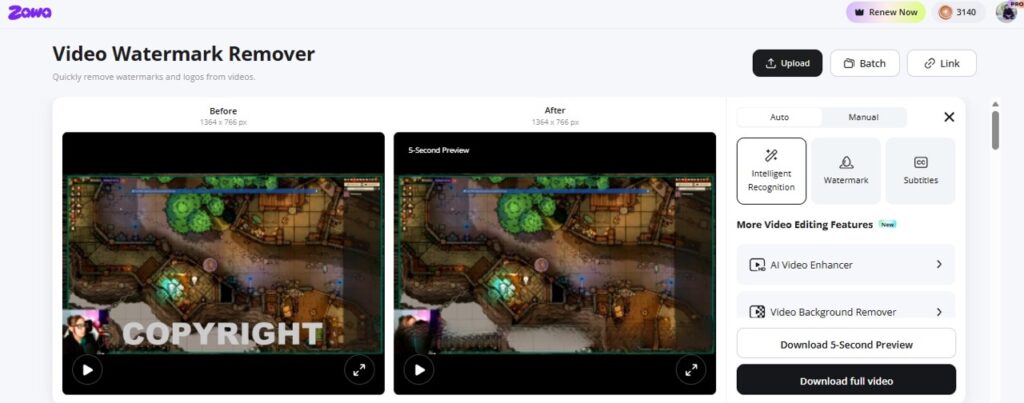
Zawa’s AI Video Watermark Remover will handle it for you. Zawa’s AI Video Watermark Remover can identify and remove your selected area from a watermarked video, such as a watermark, text, stamp, signature, etc., and will reconstruct the pixels from around the selected mark, enabling your borrowed clips to seamlessly re-integrate into your review of your clips. Save clips in popular formats like MP4, MOV and M4V with speedy processing, eliminating hours of per frame editing, thanks to the powerful AI.
Step 3 — Bring Each Clip to a Similar Quality Baseline
But now those unnecessary overlays are eliminated… let’s start making your clips actually look connected together.
This does not mean that all sources should look just like each other – that’s practically impossible, right? Just reduce the gap so it is not a quality loss every scene change for the viewers.
That’s where Zawa’s AI Video Quality Enhancer comes in handy. Enhance dull clips with more detail, bring brightness up, reduce grain, increase clarity, and that soft player webcam or blurry VTT that just wasn’t quite at the same level as the rest of your recap.
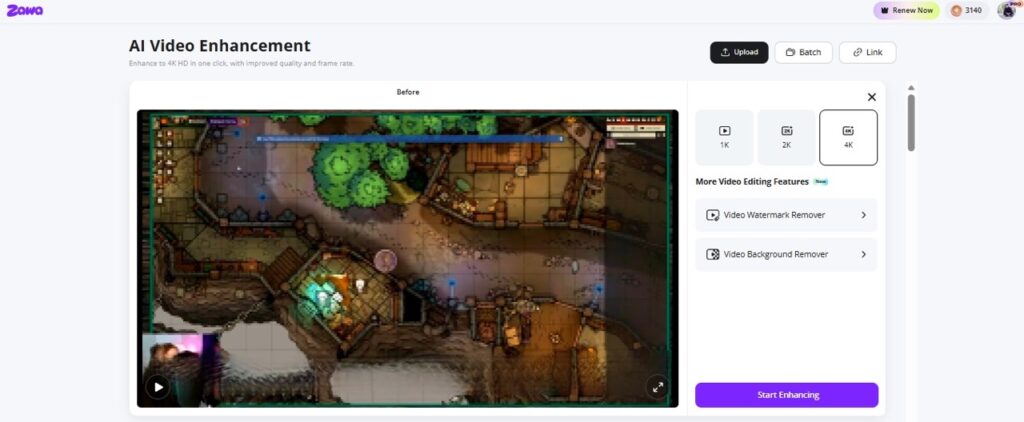
Additionally, the tool can also upscale lower quality footage, which can be handy since many real play session captures are sourced from mundane webcams or screencasts, instead of 4K film.
What a Consistent Recap Actually Looks Like
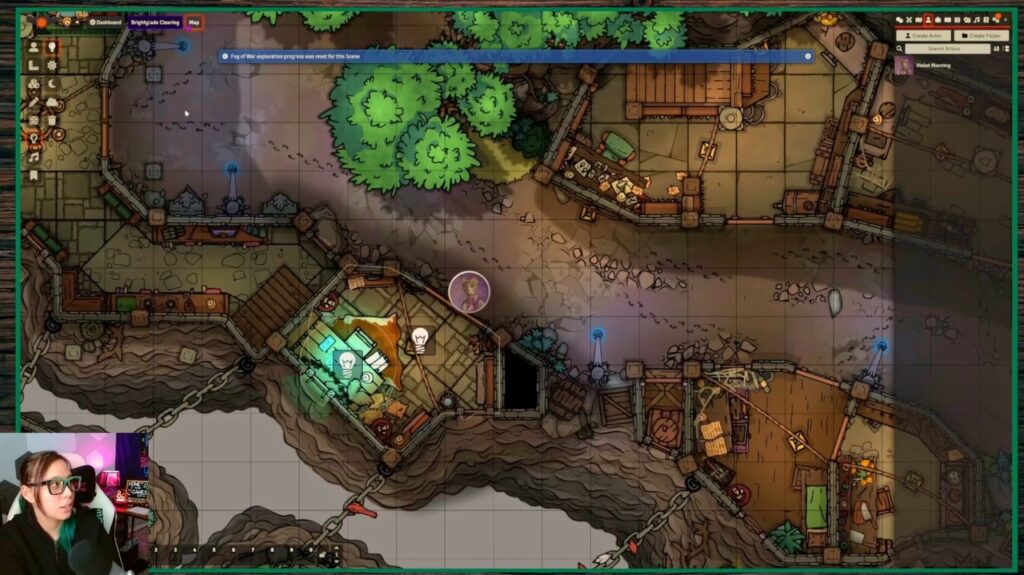
A well-put-together recap doesn’t look like every piece is shot through a single camera. Mixing webcams, voice-over capture, VTT, and guest clips would hardly ever result in that situation. So instead of focusing on that level of detail, the real objective is quite simple: if you change sources from one to another, viewers shall feel as if they are just watching this single video without any major jump-cut surprises.
Get in the habit before the real editing:
- Categorize all footage as to the original source webcam, captured screen, and downloaded clips.
- Start by getting rid of overlays or watermarks on borrowed clips.
- You can enhance the quality of the worst-performing sources. It often happens that the worst webcam or blurry map capture is your weakest source; you can work with them so they fit better with the rest.
- When you have a rough balance of footage that looks the same, go back to editing your recap in the standard way.
This small change for live-play channels can be much greater in influence than trying to get the ideal footage, as viewers will accept some webcam imperfection if the story is still good. The problem with watching is that one scene feels like the production is just different from another scene.
Conclusion
Ever finish up a recap and say, “Why does this not feel as hyped up as the game itself?” Typically, the issue isn’t your story. It’s that your video clips don’t align with hype.
You don’t need a full green-screen studio to bring your actual play videos a step above average. Clear out those distractions, balance out not-so-hot clips, and bring disparate sources into unity. Tools like Zawa, to wash away some of those clutter overlays and enhance quality will help ensure your most crucial points stand out.
Because the dice rolls, character drama, and unexpected chaos are already there. Your recap just needs to make sure the footage doesn’t get in their way.