
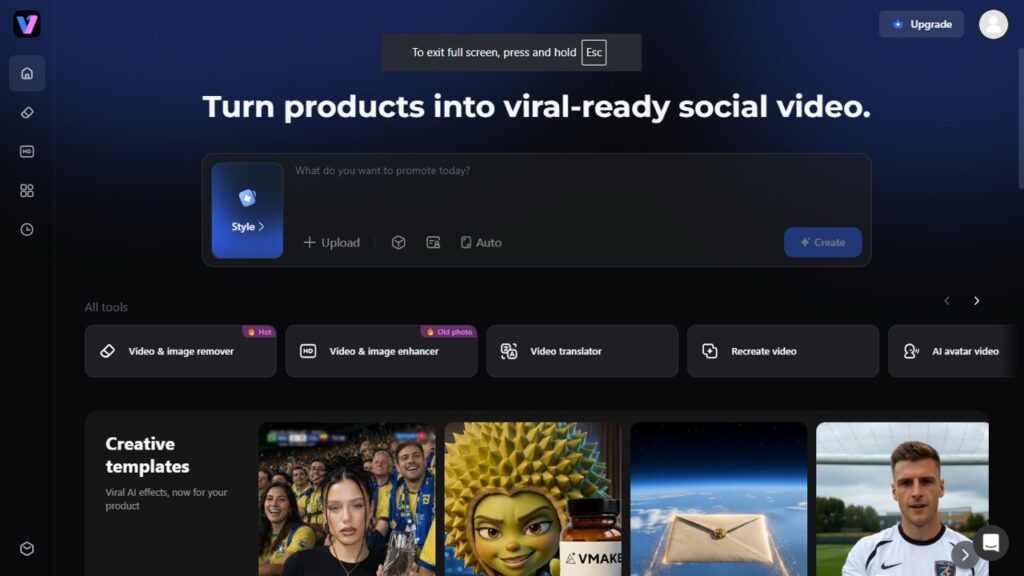
Vmake Labs is an all-in-one AI video toolkit built for SMB owners, e-commerce sellers, and short-form content creators. It combines a 4K enhancer, a watermark/object remover, a background remover, auto-captions, and an AI video generator in a browser- and/or app-based workspace. Its standout feature is a “De-AI” enhancement mode designed specifically to fix artefacts produced by tools like Sora, Veo, and Kling. This feature fixes broken frames and jittery faces, that unmistakable “AI sheen.”
What Is Vmake Labs?
Vmake bills itself as an all-in-one UGC video generator and editor. As an extension of Starri tech tools, Vmake aims to help small businesses and individual creators generate, enhance, and optimise video content for acquisition, conversion, and growth. Its tagline neatly sums up the pitch: “Turn product images into shoppable UGC videos.”
Two tools currently drive most of Vmake’s traffic: the Video/Image Remover (for stripping watermarks, subtitles, and unwanted objects) and the Enhancer (for resolution upscaling and AI-artefact cleanup). But the platform is clearly being built toward something bigger. It helps you have an interconnected workflow to generate a video, then run it through enhancement, captioning, and translation tools without ever leaving the dashboard. Think of it less as “one feature with a marketing page” and more as a Swiss Army knife aimed squarely at people making product videos, UGC ads, and social content.
Core Features Breakdown
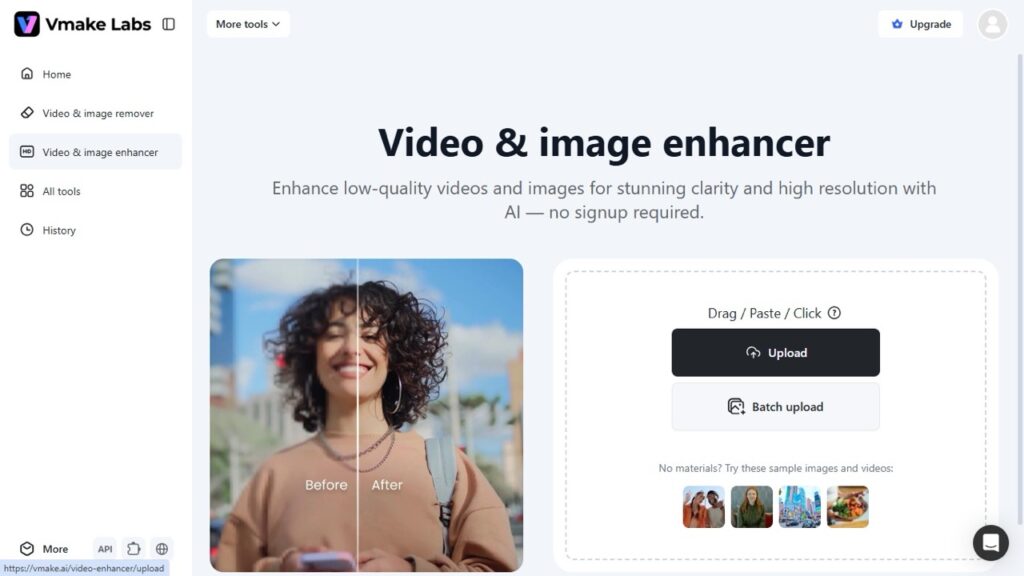
4K Upscaling & AI Restoration
The video Enhancer covers both general resolution upgrades (2K, 4K, and a generative “AI 4K+” tier) and scene-specific modes: Portrait, Product (built for e-commerce shots), Lowlight (for night footage), Game, Anime, and — most interestingly — De-AI.
De-AI mode exists for one specific problem: AI-generated video often looks almost right but has tells — overly smooth skin, flickering details, unnatural reflections, and slight warping on faces. De-AI is built to dial that back, which is a genuinely useful niche given how much content now starts life as an AI-generated clip.
Vmake also supports batch processing of up to 30 assets at once, which is a meaningful time-saver if you’re processing a backlog of product videos or social clips in one sitting.
Watermark & Object Removal
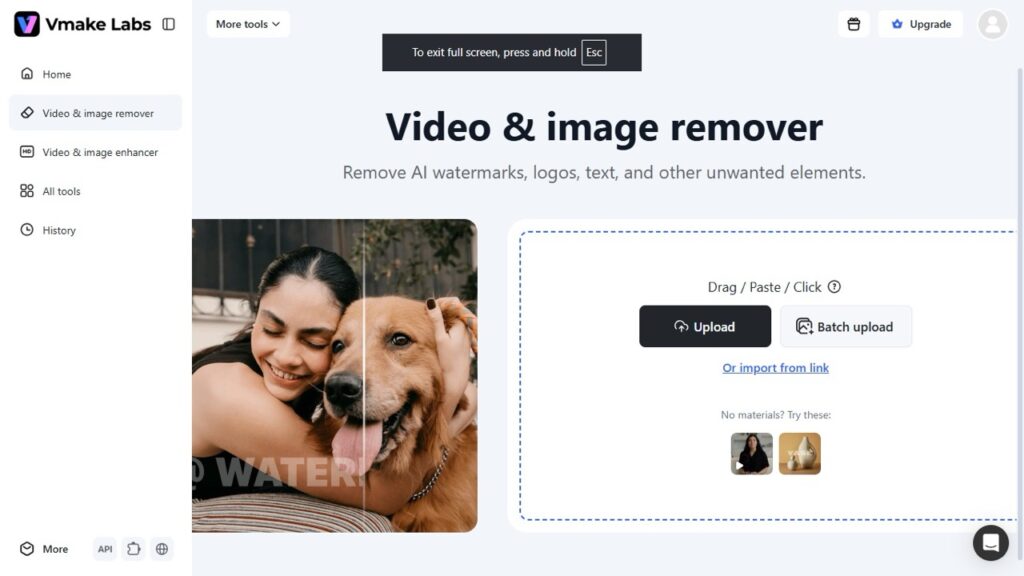
The Remover handles watermark removal, subtitle removal, text removal, passerby/object removal, and logo removal — for both video and images. There’s an automatic mode (Smart, Subtitle-focused, Watermark-focused, Passerby) and a manual mode if you need to box-select or brush over specific areas.
The headline claim here is that Vmake can track and remove moving watermarks in video — not just static logos sitting in a corner — which is harder than it sounds and a common failure point for cheaper tools.
Background Remover
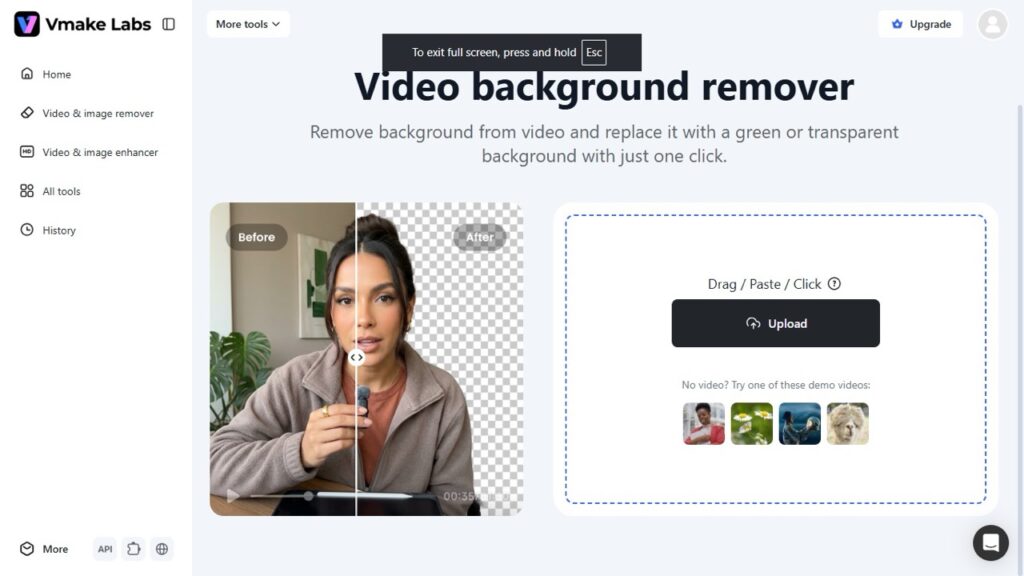
One-click background removal for video, with output as either transparent backgrounds or green screens. No actual green screen required on your end. This is aimed at product shots, talking-head/course content, and general social editing where you want to swap in a different backdrop without a studio setup.
Auto Captions
The caption generator supports input video in seven languages (English, Spanish, Portuguese, Indonesian, Japanese, Korean, Chinese) and auto-generates captions in the matching language, with a library of built-in styles you can customise and save as templates. The editor also handles basic trimming and audio cleanup to go from raw clip to captioned, polished short in one tab.
Hands-On Test: Upload Flow, Processing Speed & Output Quality
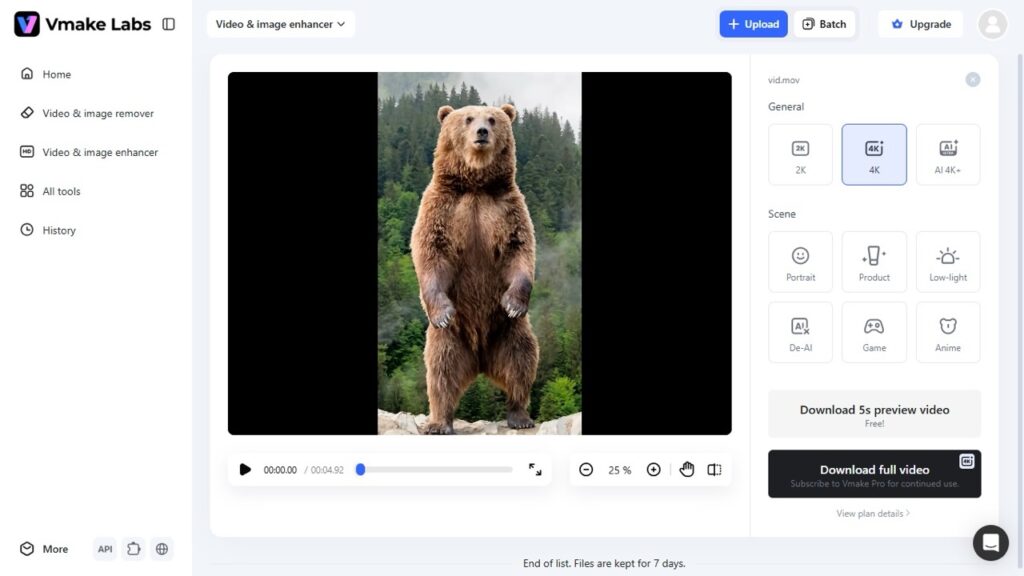
Test 1 — Enhancer (De-AI + 4K): I uploaded a 13-second AI-generated video, originally 720p with visible distortion. Drag-and-drop upload took 25 seconds, and the 5-second preview for 2K was ready in 23 seconds. The 4K took about 68 seconds. After running De-AI + AI 4K+, the video has sharper edges, less “plastic” skin, and improved lighting.
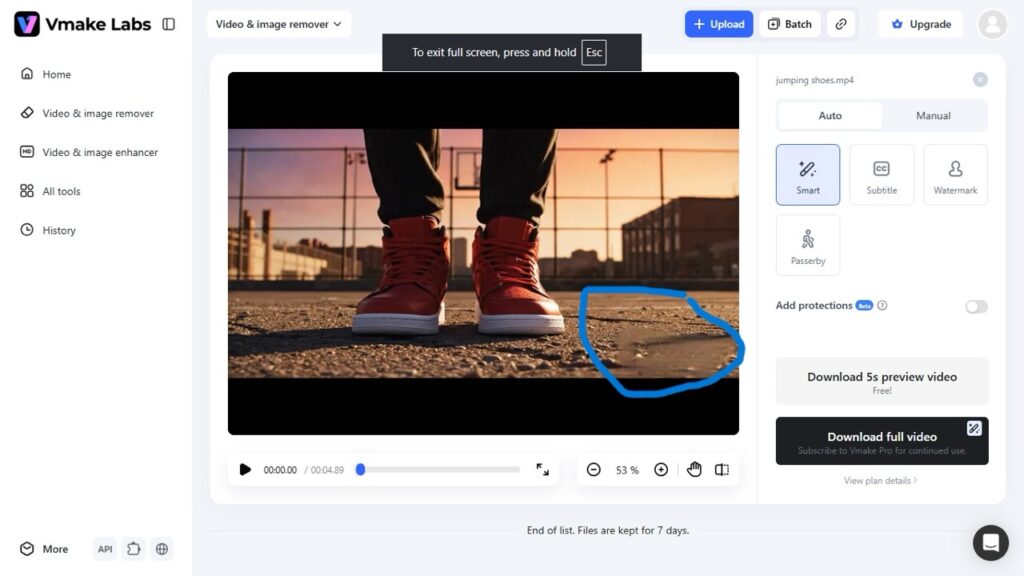
Test 2 — Watermark Remover: I tested the Smart auto-removal mode on a clip with a moving watermark. I uploaded an 8-second 720p video. It took less than 10 seconds to upload and about 25 seconds to process. The watermark remover tracked the watermark across frames cleanly, but left ghosting/blur.
Before:

After:
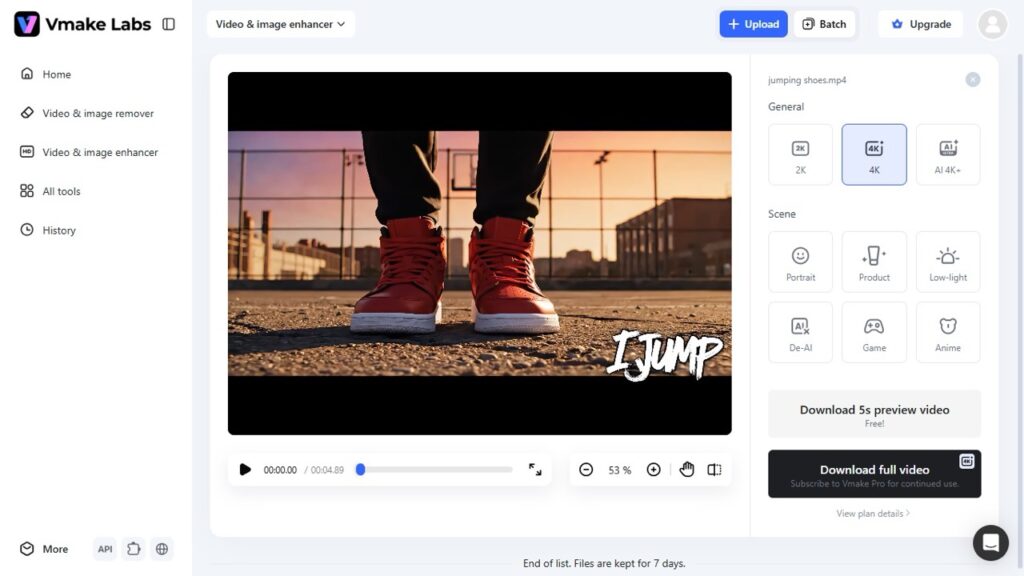
Test 3 — Video Enhancer: I uploaded the same short video I tested with the watermark remover on the video watermark remover. The 720p video took 5 seconds to upload and 25 seconds to process into a 4K video. It came out clearer, with sharpened edges and improved lighting. However, the tool adjusted the leg, which is the subject of the video.
Before:
After:
Overall processing speed: In all tests, it is obvious that speed depends on video complexity, size, and length. Hence, the tool is not yet suitable for editing longer videos.
Pricing & Credit System
Vmake runs on a credit-based model across three tiers. Free tier has 400 credits; Plus has 1,000 credits at $9.99; and Pro users have 4,500 credits monthly. Check the image below for more info.
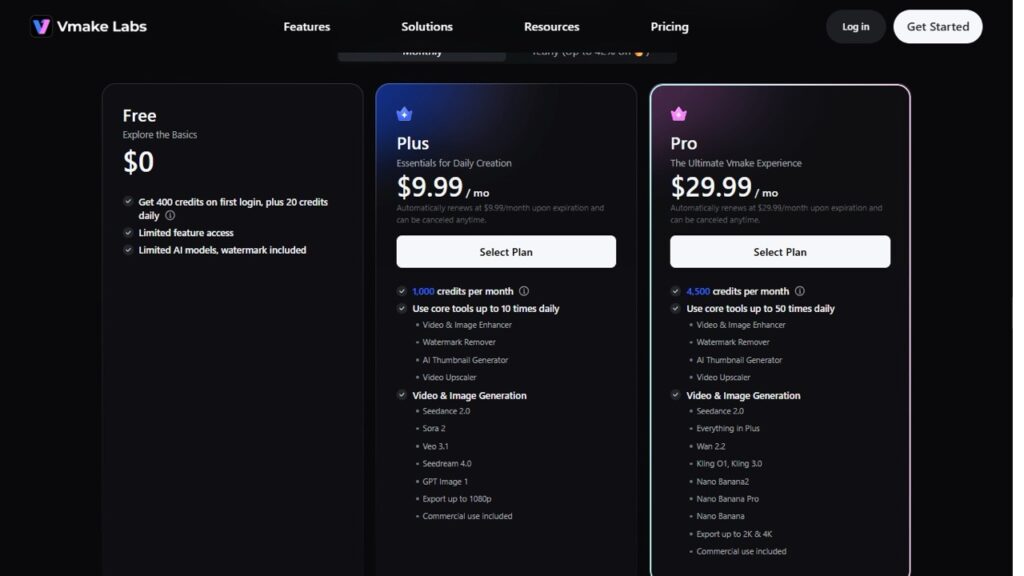
A few things worth flagging for readers:
- Credits don’t roll over — unused credits reset each billing cycle, so irregular usage patterns waste money.
- The free tier’s 720p + watermark limits make it useful for testing only, not for anything you’d actually publish.
- Some advanced features (like lip sync in the Video Translator) are billed separately on top of your plan’s credits.
- Different actions consume different amounts of credits depending on resolution and which features you stack. A 4K enhancement on a 20-second clip costs more credits than the watermark remover.
Pros & Cons
Pros:
- All-in-one workflow — enhancement, removal, captions, translation, and generation in one account
- Batch processing up to 30 assets at a time
- De-AI mode is a genuinely useful, fairly unique feature for cleaning up AI-generated footage
- Multiple upload options, including direct links from YouTube, TikTok, and Facebook
- Commercial use on paid plans
Cons:
- Extra costs for some advanced features on top of your subscription
Who Should Use Vmake?
Good fit for:
- Social media marketers and small business owners who produce regular short-form videos for products or promotions
- Creators who frequently need to strip watermarks from reposted or repurposed clips
- E-commerce sellers who want enhancement, background removal, and captioning in one workflow
- Anyone working with AI-generated video who needs to clean up the “AI look” before publishing
Probably not for:
- Professional editors who need granular manual colour and restoration controls
- Long-form or cinematic creators (generation tools cap out around 15 seconds)
- Anyone with very irregular usage patterns who’ll be penalised by non-rolling credits
Final Verdict
Vmake AI is an all-in-one video and image editing and creation tool for creators. The tool is recommended if you want to handle basic designs and keep up with your customers’ social media needs with a low budget. The toolbox lets you optimise your performance and repurpose your videos.
On the other hand, if you want a sophisticated tool or are an expert video editor, you can try other editing tools to practice your skills. Vmake is AI-powered and does not allow experimentation or collaboration.
Lastly, Vmake is a useful AI tool, but it may not produce the results you want every time. Thus, make sure you verify the outputs before you share. Another thing for free-tier users is the inability to download. So, if you are not willing to commit your finances to Vmake AI, test the tool, preview, and leave.